How to Edit SRT Files Without Breaking Timing
Learn how to edit SRT files safely, fix subtitle text, adjust timing, avoid overlaps, and export clean captions for video platforms.

Kevin Li
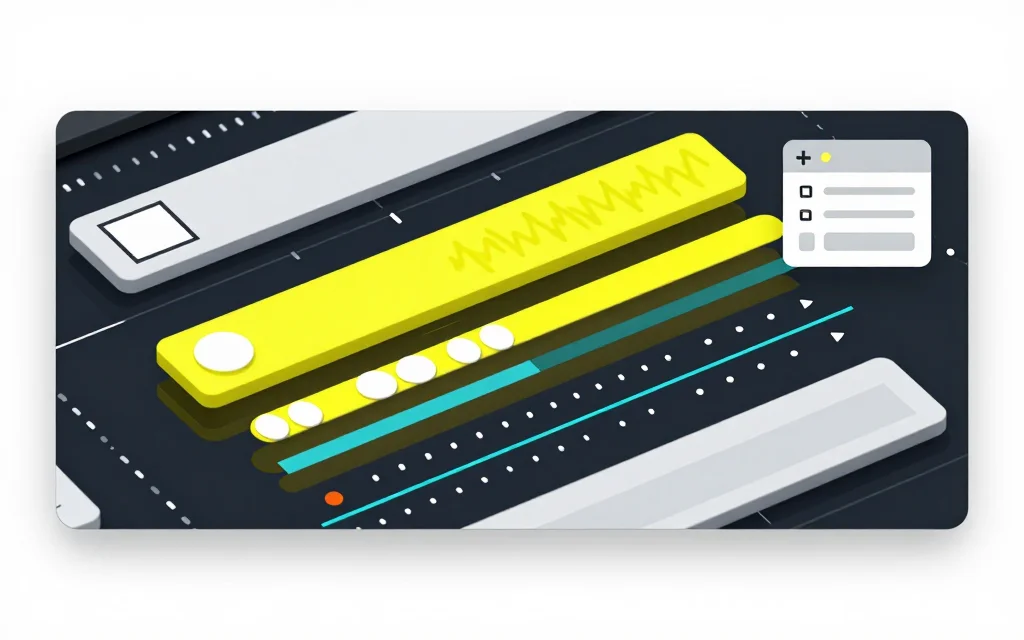
Editing an SRT file looks easy because the file is just text. That is also why it is easy to break.
An SRT file depends on cue numbers, timestamp syntax, blank lines, and subtitle text staying in the right structure. You can fix typos in a text editor, but timing edits and large changes are safer in a subtitle editor.
What an SRT file contains
A basic SRT cue has three parts:
1
00:00:01,000 --> 00:00:03,500
This is the subtitle text.
The number identifies the cue. The timestamp line tells the player when the cue starts and ends. The text lines are what viewers see. A blank line separates one cue from the next.
If you delete a blank line, change the timestamp punctuation, or accidentally merge two cues, some tools will fail to import the file.
When a text editor is enough
Use a plain text editor if you only need small text fixes:
- Correct a misspelled name
- Fix punctuation
- Remove a repeated word
- Change capitalization
- Replace a product term
Be careful not to touch the timestamp line unless you are sure of the format. SRT uses commas in timestamps, not periods.
If you do edit by hand, make one type of change at a time. Fix text first, save, then adjust timing if needed. Mixing text edits, timestamp edits, and renumbering in one pass makes mistakes harder to find.
The small habit that saves the most time is keeping a copy before large timing changes. SRT files are tiny, so there is no penalty for saving episode-fixed-text.srt before you create episode-shifted-500ms.srt.
When to use a subtitle editor
Use an online subtitle editor when you need to change timing, split cues, merge cues, shift all captions, or validate the file.
This is especially important when captions are late throughout the whole video. Instead of editing every timestamp manually, shift all cues by a small positive or negative offset, then preview the result.
A subtitle editor can also catch overlaps, empty cues, end times before start times, and malformed timestamps.
It also gives you a safer preview loop. You can change a cue, export, and check the file before sending it to a platform or editor.
That preview loop is important because subtitle problems are often visual. The text can be correct while the cue is still too long, too late, or awkwardly split across the screen.
How to fix subtitle timing
First, figure out whether the timing problem is global or local.
If every caption is late by about the same amount, shift the whole file. For example, moving every cue 500 ms earlier may fix a file that consistently appears half a second late.
If only a few captions are wrong, edit those cues individually. Do not shift the whole file to fix one bad section.
After timing changes, watch the start, middle, and end of the video. A file can be synced at the beginning and drift later if the source went through a speed or timebase conversion, or was edited after captions were created.
How to handle overlapping cues
Overlaps happen when one subtitle starts before the previous subtitle ends. Some players tolerate this. Others display both cues awkwardly or drop one of them.
If two cues overlap because people are speaking quickly, shorten the first cue or move the second cue slightly later. If the overlap comes from a bad export, sort the cues by start time and validate the file before making text edits.
Do not fix overlaps by deleting words blindly. The viewer still needs enough context to follow the sentence. It is usually better to split or retime cues than to remove meaning.
How to edit text without hurting readability
Subtitles are not the same as paragraphs. A long sentence may be fine in a transcript but too much on screen.
Keep lines short. Break captions at natural pauses. Avoid splitting a name, phrase, or important term across cues.
If a caption covers too much of the video, consider shortening the text or splitting it into two cues. The goal is not to preserve every transcript line exactly. The goal is to make the video easier to watch.
Export and convert when needed
After editing, save the file as SRT if the platform accepts it. If you need VTT for web video, use an SRT to VTT converter.
If you need only the caption text for notes or summaries, convert SRT to TXT. If you need styled subtitle workflows, SRT to ASS may be useful.
Do not delete the edited SRT after conversion. Keep it as the source file, then create VTT, TXT, or ASS versions from it when needed.
If you later find a typo, fix the source SRT first. Then regenerate the other formats so every version stays consistent.
Common mistakes
The biggest mistake is editing SRT in a rich text editor. Use plain text or a subtitle tool. Curly quotes, hidden formatting, and changed line endings can create strange import problems.
Another mistake is renumbering cues manually and making duplicates. Many tools can renumber automatically.
People also forget to validate after editing. A file can look fine at a glance and still have an overlap or malformed timestamp.
Before uploading the edited file, test it in the destination if you can. A file that imports into one editor may still show line wrapping differently on a platform player.
FAQ
Can I edit an SRT file in Notepad or TextEdit?
Yes, for small text changes. Use plain text mode and avoid changing timestamp syntax.
How do I shift all subtitles earlier or later?
Use a subtitle editor with a time shift action. Enter a positive or negative offset and preview the result.
What causes an SRT file to fail import?
Malformed timestamps, missing blank lines, overlapping cues, duplicate structure problems, or saving the file in the wrong format can cause failures.
Can I convert SRT to VTT after editing?
Yes. Use a real converter rather than renaming the file extension.
What if I need to generate the SRT first?
Use auto subtitles or video transcription, export SRT, then edit the file as needed.