Auto Subtitle Generator for YouTube Shorts
Use auto subtitles for YouTube Shorts with readable line breaks, placement review, and a workflow that fits vertical video.

Kevin Li
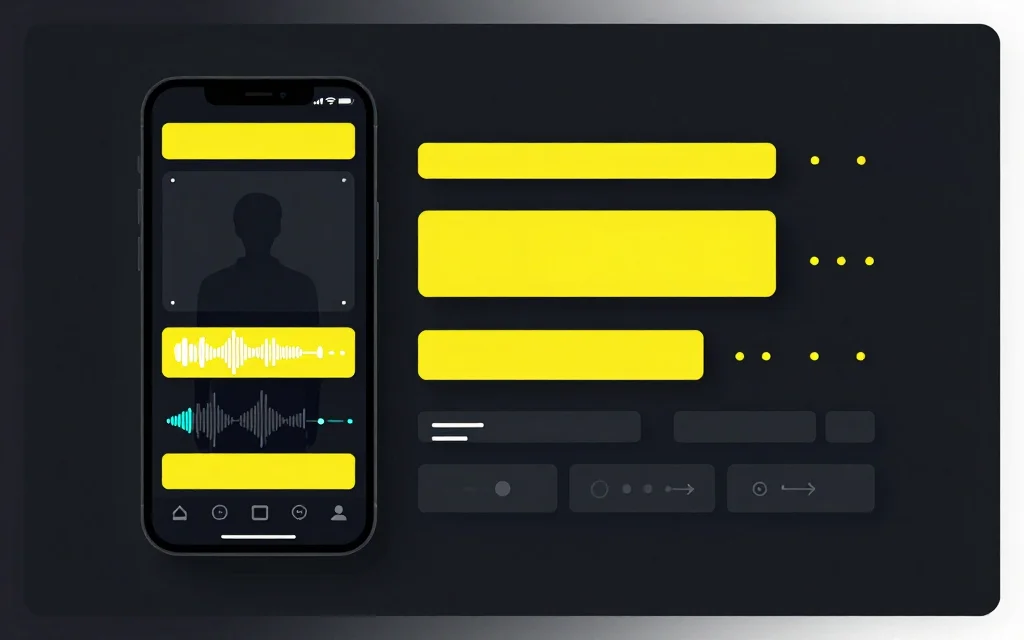
An auto subtitle generator can make YouTube Shorts much easier to finish, but the generated captions still need review. Shorts are small, fast, and vertical, so line breaks, placement, and timing matter.
The goal is not just to create subtitles. The goal is to make the Short easier to watch in a phone feed.
For Shorts, the caption can be part of the creative, not just an accessibility layer. Heavy line breaks or a style that competes with the subject can make the clip harder to follow even when the transcript text is accurate.
Start with the final vertical frame
Before generating burned-in captions, decide the final video size. YouTube Shorts are usually 9:16 vertical. If your source video is horizontal, resize or crop the clip first so captions are created for the actual frame viewers will see.
Use Video Resizer when you need a vertical canvas with crop, blur background, or solid background. Use Crop Video when you need to choose a specific part of the frame.
Then generate captions with the auto subtitle generator.
Keep captions readable on a phone
Shorts are watched quickly. Captions should be readable at a glance. Avoid long blocks of text, tiny type, and captions placed too close to platform UI.
Good short-form captions usually break around natural phrases. They do not need to preserve transcript paragraphs. They need to help the viewer follow the video.
If a caption takes too long to read, split it. If it flashes too quickly, adjust timing or simplify the text.
Review names and key terms
Auto subtitles are useful, but they can miss names, brand terms, acronyms, and niche words. You should review those before export.
This matters more in Shorts because viewers have little context. A single wrong name or confusing word can make the clip feel low quality.
For longer source videos, it can help to create a transcript first with Video Transcription, choose the clip, then generate captions for the final short.
Use the transcript to choose better Shorts
If the source is a long video, do not caption every possible clip immediately. First, find the moment that can stand alone. A Short needs a clear setup, payoff, or useful idea without requiring the viewer to know the full video.
A transcript makes that easier. Search for strong claims, questions, examples, or moments where the speaker explains something cleanly. Then cut that segment, resize it for 9:16, and add subtitles to the final version.
This order keeps the caption work focused. You are reviewing captions for clips you might actually publish, not polishing sections that will be discarded.
Style should support the content
Caption style should match the video without fighting it. High-contrast captions are easier to read, but overly busy styles can distract from the speaker or product.
If the video includes screen recordings, keep captions away from important interface details. If it is a talking-head clip, avoid covering the mouth or hands when those gestures matter.
Export and watch the downloaded file
Always watch the exported Short before posting. Check the first caption, a fast section, and the end. Make sure captions do not appear late, cover important action, or disappear too quickly.
Browser exports can take time for larger files. Keep the tab open during processing and test the downloaded file locally.
If the Short will be posted across several platforms, export one clean master and then create platform-specific versions only when needed. A small caption placement change can make a clip feel better on one platform and worse on another, so do not assume every vertical export is interchangeable.
Common mistakes
One mistake is captioning before resizing. If you resize after captions are burned in, the captions may become too small or sit in the wrong place.
Another mistake is accepting auto text without review. Shorts move fast, but viewers still notice obvious errors.
Creators also place captions too low. Leave space for platform controls and avoid putting important words at the very bottom edge.
Related tools and guides
- Generate captions with the auto subtitle generator
- Resize Shorts with Video Resizer
- Crop the frame with Crop Video
- Turn long videos into Shorts with Long Video To Clips
- Read how to generate subtitles automatically
FAQ
Can I use auto subtitles for YouTube Shorts?
Yes. Auto subtitles are useful for Shorts, but review text, timing, and placement before posting.
Should captions be burned in for Shorts?
Often yes. Burned-in captions are always visible, which helps viewers watching without sound.
Should I resize before adding captions?
Usually yes. Decide the final 9:16 frame first, then add captions for that frame.
How long should captions be?
Keep them short enough to read quickly on a phone. Break long sentences into natural phrases.
Do auto subtitles need editing?
Yes. Check names, technical terms, punctuation, and timing.